A bot that runs inside the game page

OSB is a panel added to the game page by Tampermonkey or OSB Manager. Settings are saved per character.

Panel pages

The screenshots come from the real panel with simulated game data. Filter the cards by topic.

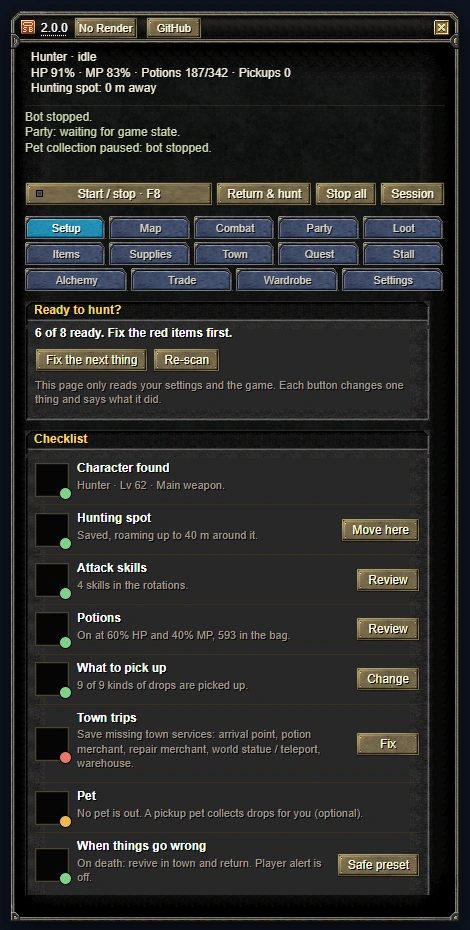
OSB panel, Setup page: an eight-item checklist. Six are green, town trips red, pet yellow.

Before you go hunting

The Setup page reads your settings and the game and shows what is missing in red and what is optional in yellow. Fix the next thing jumps to the first red item.

  • 8 checks: character and weapon, hunting spot, skills, potions, pickup, town trips, pet, what happens on death.
  • It leaves your settings alone until you press a button.
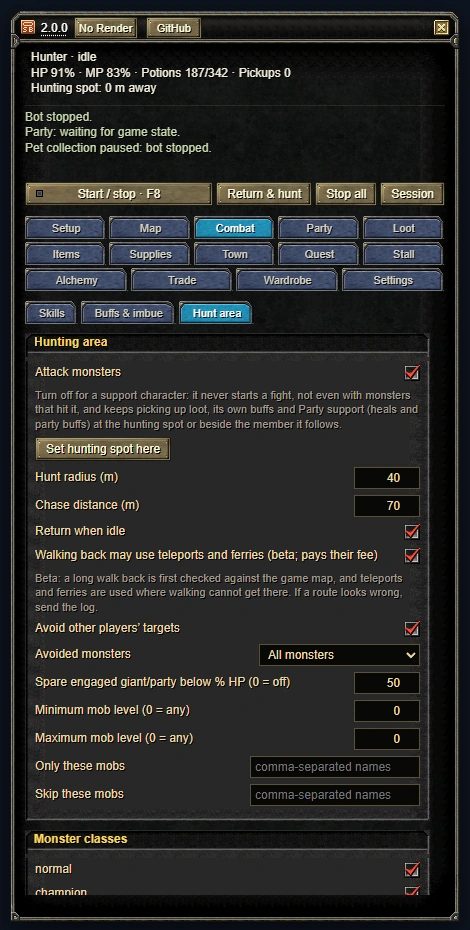
OSB panel, Combat page, Hunt area tab: hunt radius 40 m, chase distance 70 m, avoided monsters and level limits.

Hunting spot and radius

Save where you stand with Set hunting spot here. The bot hunts around that point.

  • Radius, chase distance, lowest and highest monster level.
  • Turn monster classes on or off one by one: normal, champion, giant, party and the rest.
  • It skips a monster another player has just hit. Your party members do not count.
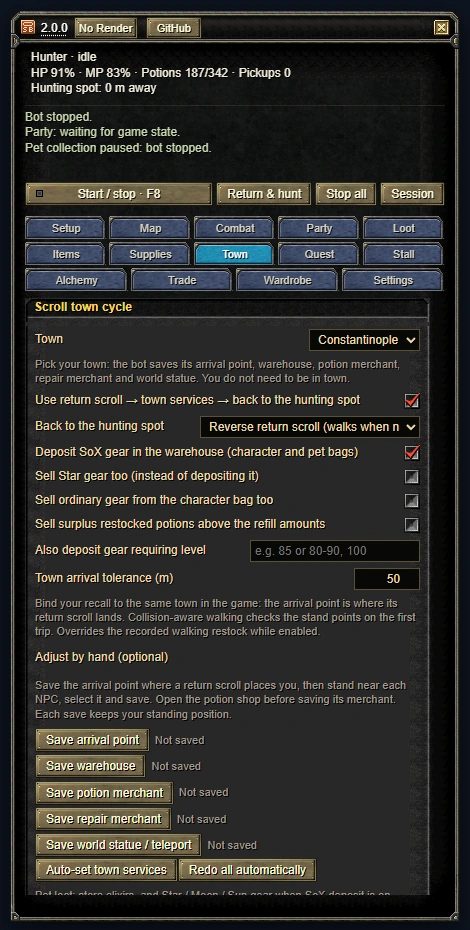
OSB panel, Town page: the Town list at the top, the return scroll town trip settings and the buttons to save points by hand.

Town trips by return scroll

When the bag is full or potions run low it recalls to town, visits the warehouse, the potion merchant and the repair merchant, then reverses back to the hunting spot.

  • Picking Hotan, Jangan, Donwhang, Constantinople or Samarkand in the Town list sets up the town trip. You do not have to be in town.
  • SoX gear goes to the warehouse. Selling Star gear is a separate option.
  • Without a reverse scroll it walks back to the spot.
  • After a death it revives in town, does the services and comes back.
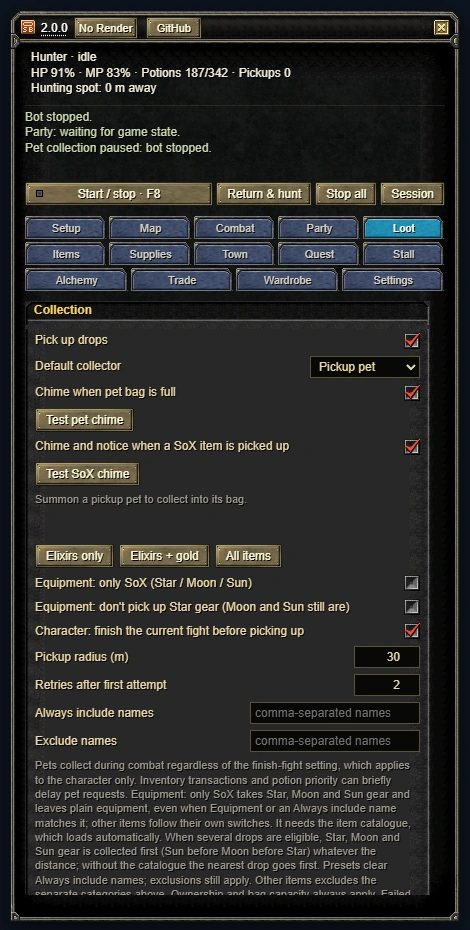
OSB panel, Loot page: Pick up drops at the top, the pickup pet, SoX alert and a 30 m pickup radius.

Pet pickup and item rules

The pickup pet collects during fights too. You choose what the pet takes and what the character takes. A SoX pickup plays a short chime.

  • Each item gets a rule: Pick, Store, Sell, Keep or Drop.
  • The primary weapon, secondary weapon and shield you choose are not sold, stored or dropped.

Other pages

  • Skill order, buffs, imbue. It wears the weapon a buff needs, casts, then goes back to the combat weapon.
  • Heals, group heals, party buffs and resurrection with Rebirth.
  • Gold, potions, equipment, stones: pet, character or leave it, per kind.
  • HP and MP potions, vigor, arrows and bolts, pet kits. A low-stock and a refill number for each.
  • Tries up to the target plus and fuses Luck, Steady, Immortal and Astral stones itself.
  • Spends mastery, skill and stat points in the ratio you set.
  • Buys specialty goods in one town and walks them to another to sell. Needs a trader suit and a transport.
  • Always on. After a disconnect it retries for up to 12 hours and never types your password.
  • Revives in town and comes back. With no progress it drops the target first, then returns to the spot.
  • Your other accounts join the main character's party and apply again after a disconnect.
  • Share the settings you changed as a code or a file. Your positions are never in it.
  • Preview it, copy it or save it to a file. It is not sent anywhere.

Three window layouts

The settings are the same in all three; a change made in one shows in the others.

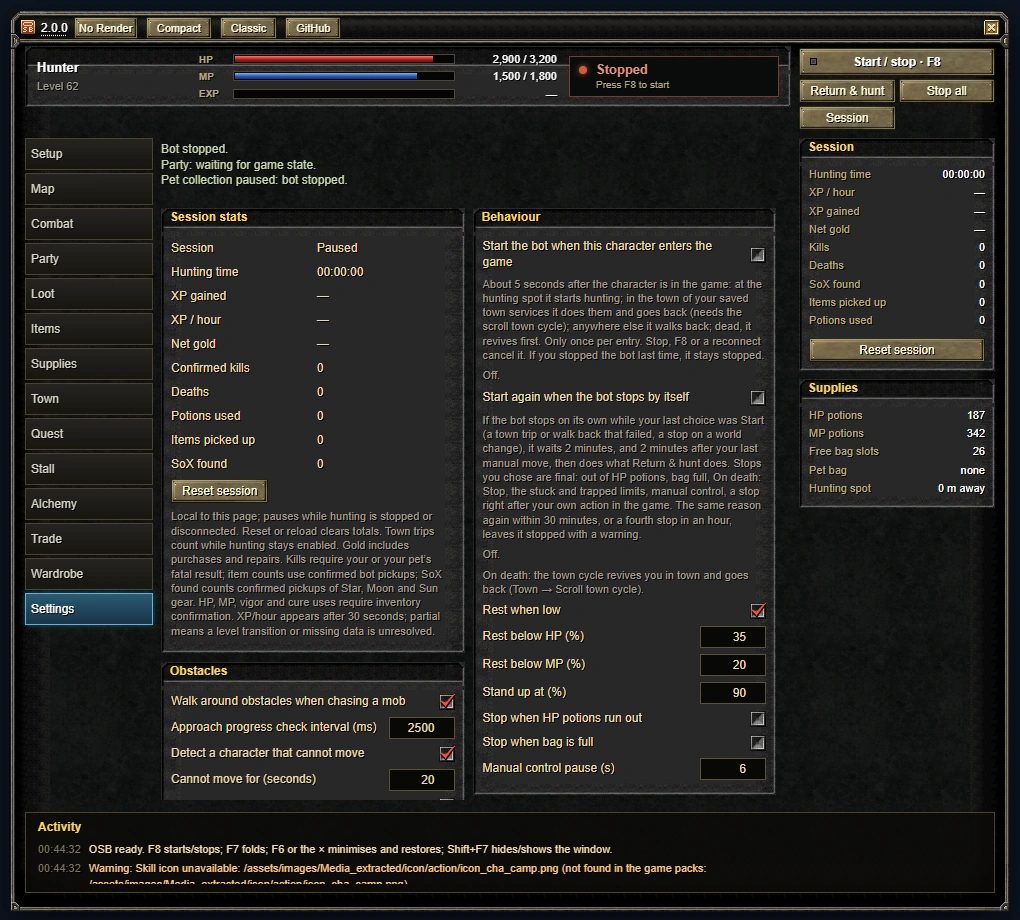
OSB panel, Wide layout: a status strip on top, the page list on the left, the Settings page in two columns in the middle, Session and Supplies boxes on the right.
Wide layout, Settings page. The Session and Supplies boxes on the right stay open on every page.
Compact
The default window. Screens narrower than 900 pixels always get this one.
Wide
HP, MP and EXP bars, the pages listed on the left, session numbers and supplies on the right, the Activity log at the bottom. Pages in two columns.
Classic
A fixed-size window for screens at least 900 pixels wide: a menu bar, tabs down the left, session numbers on the right. For players used to the SBot layout.

Recovering on its own

When the bot stops, the status line says why. It gets out of some situations by itself; the numbers are the defaults.

After a disconnect

Reconnect
always on
Keeps trying for
up to 12 hours
Password
never typed or stored

It waits for the game's own retries, then enters the character again. If it was hunting, it walks back to the spot, which can be up to 14 km away, and carries on.

When the game fails to load

First reload
after 15 s
Next ones
doubling each time
Longest wait
30 min

On Unable to finish loading it reloads the page and remembers the character and the hunt. After 12 hours without getting in it stops and says so.

When it gets stuck

Anti-stuck time
3 min
Failed recoveries allowed
3
Obstacle detour
after 2.5 s still

With no progress it first drops the target, then walks back to the hunting spot. At the limit it stops, or goes to town if you choose.

When it stops by itself

Start again
off by default
Wait
2 min
Same reason
stays stopped the 2nd time in 30 min

For stops nobody chose, if your last choice was Start, it waits 2 minutes and then does what Return & hunt does.

Network and privacy

  • OSB sends no data to us or to anyone else.
  • It only fetches update information and route data from raw.githubusercontent.com/corevider/osb and api.github.com.
  • It checks for updates on load and every 15 minutes, and installs nothing until you press Update.
  • Bug reports and log exports are not uploaded; you copy or save them.

Limits

  • Checking long walks against the game map, and using teleports and ferries on the way back, are beta. They were tested on the route from Hotan to the Karakoram aircraft dock.
  • The street stall (Stall) has only been run in simulation, not on the live server.
  • Dungeons have no map; obstacle detours work outdoors only.
  • New options in recent versions were tested in simulation. The release notes say which ones were tried on the live server.
  • iPhone and iPad are not supported: iOS suspends the page when you leave Safari.

Keys

KeyWhat it does
F8Start or stop the bot
F6Minimise the panel to an icon, or bring it back
F7Fold or unfold the panel
Shift + F7Hide or show the panel; the bot keeps running
×Minimise the panel to an icon; the bot keeps running