By the end of this page OSB will be installed, the gaps on the Setup checklist will be closed and your character will be hunting when you press F8. You need a browser with Tampermonkey or Violentmonkey and an OpenSRO account.
Install the bot
- Add the script by following the steps on the install page.
- Turn off any other OpenSRO bot script. Two bots cannot run in one tab.
- Reload the game.
If you are coming from the previous bot, your settings carry over and share codes and files made by it still import. Just disable the old script first.
OSB checks for updates by itself, on load and every 15 minutes. When the version number shows an Update button, click it, install, then reload the game when it suits you. Settings are saved per character. When you log in with a character that has no hunting spot or attack skills yet, the Setup page opens on its own.
Read the Setup checklist
Setup is the first page of the panel. It is a live checklist with eight rows: character and weapon, hunting spot, attack skills, potions, what to pick up, town trips, pet, and what happens on death. Each row says what is missing, and most rows have one button. For a missing item, the button is Set here, Pick skills, Turn on, Set up town or Safe preset.
Fix the next thing jumps to the first red row. In the screenshot below, six rows are green, town trips are red and the pet is yellow.
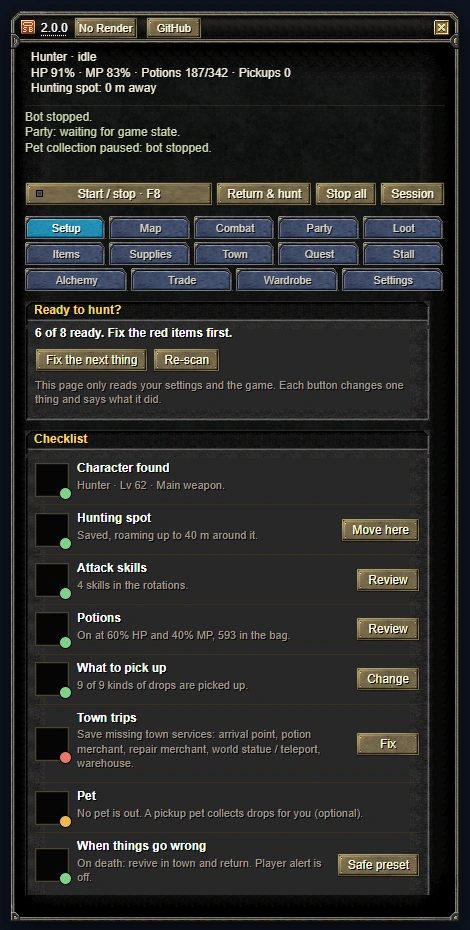
The page only reads the game and your settings until you press a button. It changes nothing on its own.
Starter settings
There are three ready-made sets: Level up, Farm drops and Safe AFK. They are laid over your current settings, so your skills, hunting spot and town stay as they are. The page lists every change first and applies nothing until you press Apply. If you do not like the result, Undo last change brings your old settings back.
What you still choose yourself
The checklist tells you what is missing, but some choices are yours. In order:
- Combat: save your hunting spot and pick your attack skills, buffs and imbue. The hunting area guide covers the spot.
- Combat: tick the monster kinds Berserk should be used on. Only Giants by default. Berserk fires once the gauge is full, so the gauge waits for a ticked kind to show up.
- Loot: choose what to collect, including Magic stones and Attribute stones. With Equipment: only SoX on, you take only Seal of Star, Moon and Sun equipment. Gold, potions and other items follow their own switches.
- If the pet collects for you, summon your pickup pet and select it as the collector.
- Supplies: set your HP and MP potion thresholds. Use beginner +100% speed scroll automatically is in the same place, if you want it.
- For town trips, see the town trip guide.
Start the first hunt
F8 starts and stops the bot. A small light in the left corner of Start / stop shows the state: green is hunting (also while dead and waiting to revive), yellow is a town trip, a walk back, a reconnect or other bot work, grey is stopped. Point at the button to read the state in words.
The × button or F6 shrinks the panel to a small icon. The bot keeps running.
If it goes wrong
- After installing or updating, reload the game and check the version number in the panel. Disable any other OpenSRO bot.
- If a starter set did not do what you wanted, press Undo last change.
- If the bot stopped by itself, read the status line on the main panel.
- If that does not explain it, open Settings › Send bug report. Preview the diagnostics, add an explanation if you like, press Copy report or Save report file and attach it to a GitHub issue. Nothing is uploaded. Check your explanation for private details before you post it.
- Common questions are on the FAQ page.