By the end of this page the bot will know where to hunt, which monsters to attack and how far to chase them. OSB has to be installed first. If it is not, start with first setup.
Save the hunting spot
The bot hunts around this point. There are three ways to save it.
- On Combat › Hunt area, walk your character to the place you want to hunt and press Set hunting spot here.
- On the Map page, click the map and press Make this the hunting spot. As on the game’s own map, the point uses your current height.
- Under the map, Hunting area takes outdoor X and Y coordinates in whole metres. Set spot saves them as the hunting spot and Set actual position saves where you stand. Get position and Copy show and copy your current coordinates without changing the spot.
Dungeons have no map yet.
Hunt radius and chase distance
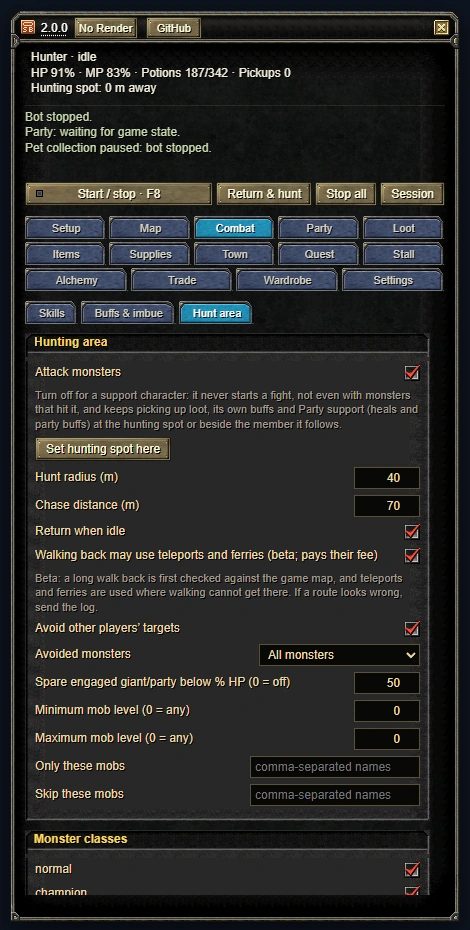
On the Map page the hunt radius is the yellow circle and the chase distance is the dashed ring. You can change both under the map. In the screenshot below the hunt radius is 40 m and the chase distance is 70 m.
Monsters outside that range are skipped as “too far”.
Choose which monsters to attack
Under Monster classes you switch each class on or off. The classes are normal, champion, elite, party, giant, titan and unique. A level minimum and maximum and name filters can also exclude a monster.
Two behaviours you should know about:
- Small monsters first is always on. While you fight a stronger monster, the bot switches to a weaker one that is hitting you, kills it and goes back. It finishes a target that is below 25% HP and never switches during a cast.
- Avoid other players’ targets is on by default. It skips a monster another player has just hit. Hits from your party members and their pets do not count, so the bot joins the monsters your party is fighting.
For a character that only supports, untick Attack monsters (Combat › Hunt area). It then never starts a fight, not even with monsters that hit it.
When it does not attack
If no monster is being attacked, the status line says why, for example: “Monsters in view: 5. Skipped: 3: monster type is switched off (Combat > Hunt area > Monster classes); 2: too far (Hunt radius or Chase distance).” Other reasons it can give: level outside your minimum or maximum, name filters, another player is fighting it, and recently given up.
Getting stuck and obstacles
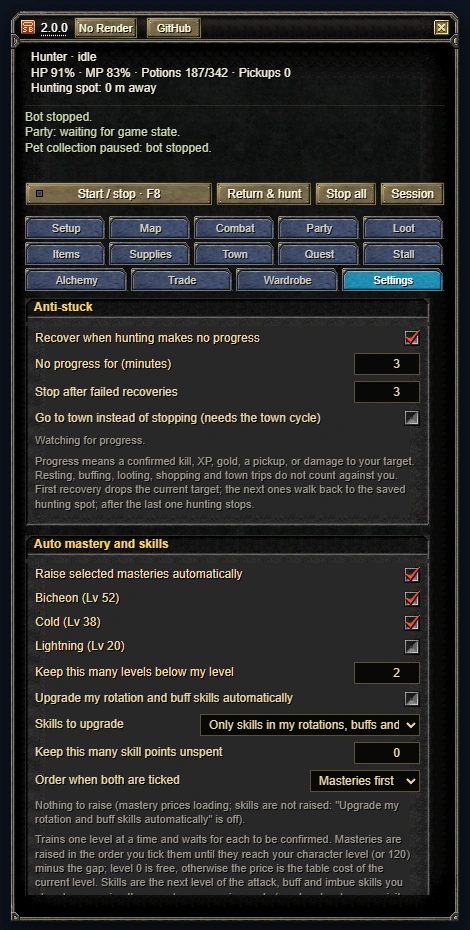
Both settings are under Settings. Obstacles (on by default): if the character has stood still for 2.5 seconds without hurting its target and the game’s collision data says the straight line is blocked, the bot walks around the obstacle until the line is clear, then normal attacking takes over. After three detours on one monster it drops that monster for a minute and picks another. It needs the collision data the game loads and works outdoors only.
Anti-stuck: while hunting, the bot looks for progress: a confirmed kill, XP, gold, a pickup or damage to your target. If nothing happens for the set time (3 minutes by default), it recovers in steps. First it drops the current target, then it walks back to the saved hunting spot and carries on. After the set number of failed recoveries (3 by default) it stops hunting. Any confirmed gain clears the count. With Go to town instead of stopping on (it needs the town cycle) it makes a town trip instead and stays in town.
A separate rule covers a character that cannot move. If it should be walking (chasing, returning or picking up) but has not moved for 20 seconds and nothing is being damaged, for example because it is inside a tree, the bot first steps back to the last position it walked from, then walks to the nearest open ground. If both fail, it stops hunting with an alert chime and a message. It never uses a return scroll by itself. You can switch this off or change the time under Settings › Obstacles.
If it goes wrong
- If the bot does not attack, read the status line on the main panel first. It names the reason.
- If the spot cannot be reached on foot (across a river, for example), walking back can use the game’s teleporters and ferries. Switch that off with Walking back may use teleports and ferries (beta) under Combat › Hunt area. It was tested only on the Hotan to Karakoram aircraft dock route. If the bot takes an odd way, send the log.
- Town trip settings are in the town trip guide.
- If you cannot solve it, open Settings › Send bug report: preview the diagnostics, press Copy report or Save report file and attach it to a GitHub issue. Nothing is uploaded. Common questions are on the FAQ page.