
By the end of this page you will have several accounts running side by side in OSB Manager, each with its own OSB. Manager 1.0.0 is a desktop app for Windows 10 or 11 (WebView2 is needed) and macOS 26 on Apple Silicon. The OSB bot is a separate userscript and does not come with Manager. You add it below.
Add an account
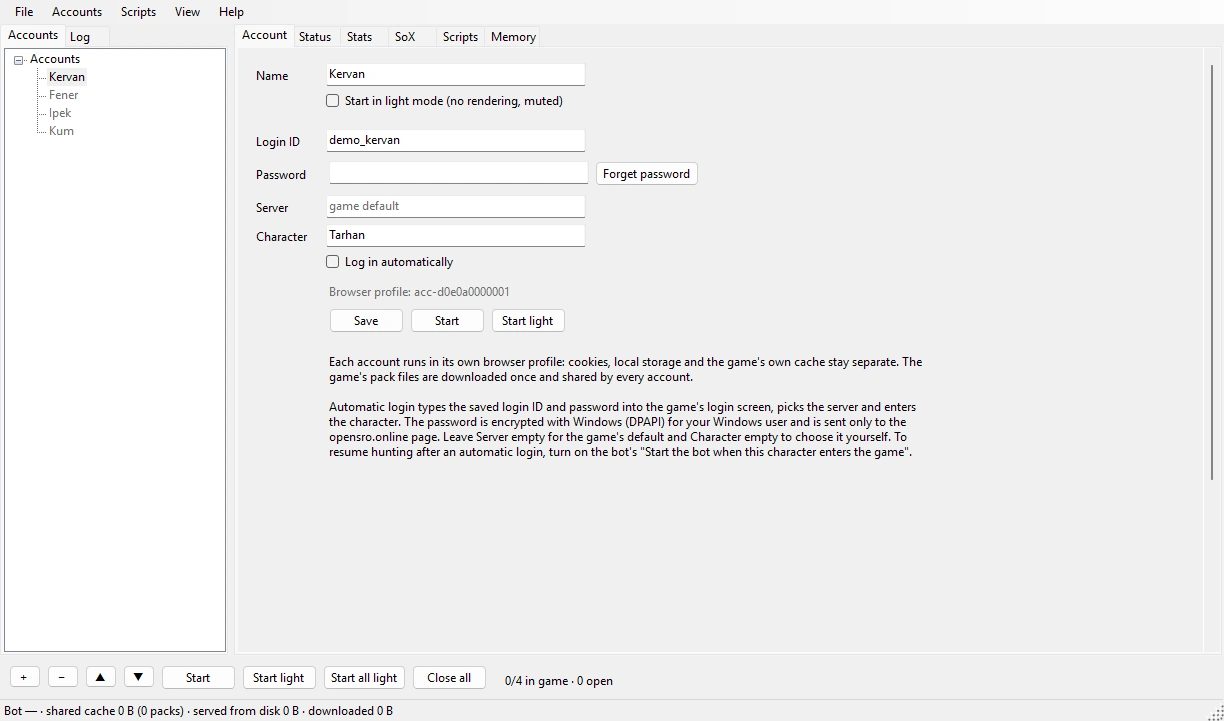
Add an account with +. The Account tab has fields for login ID, password, server, character and Log in automatically. Each account opens in its own browser profile, so cookies, local storage and cache are separate between accounts.
Auto login
With Log in automatically on, Manager waits about 8 seconds, clicks through the login screen, picks the server, types your ID and password, connects and enters the character you named.
- It never enters a character that is waiting for deletion.
- With Character empty it stops, so you can choose.
- After two failed tries it says “Auto login stopped”.
- The password is sent at most 3 times in 10 minutes and at least 15 seconds apart. It is sent only while the window shows https://opensro.online/ and only when the page asks for it.
On Windows your password is encrypted with DPAPI for the current Windows user. It is never written in plain text or to the log, and another Windows user or another PC cannot decrypt it. On macOS it lives in the login Keychain. After an update, macOS may ask once to allow access. Always Allow stops the question for that build. Deny, followed by entering the password again in the Account tab, also works.
Auto login only gets you into the game. To make the bot hunt after it, turn on Start the bot when this character enters the game in the bot’s panel, under Settings › Behaviour.
Add OSB
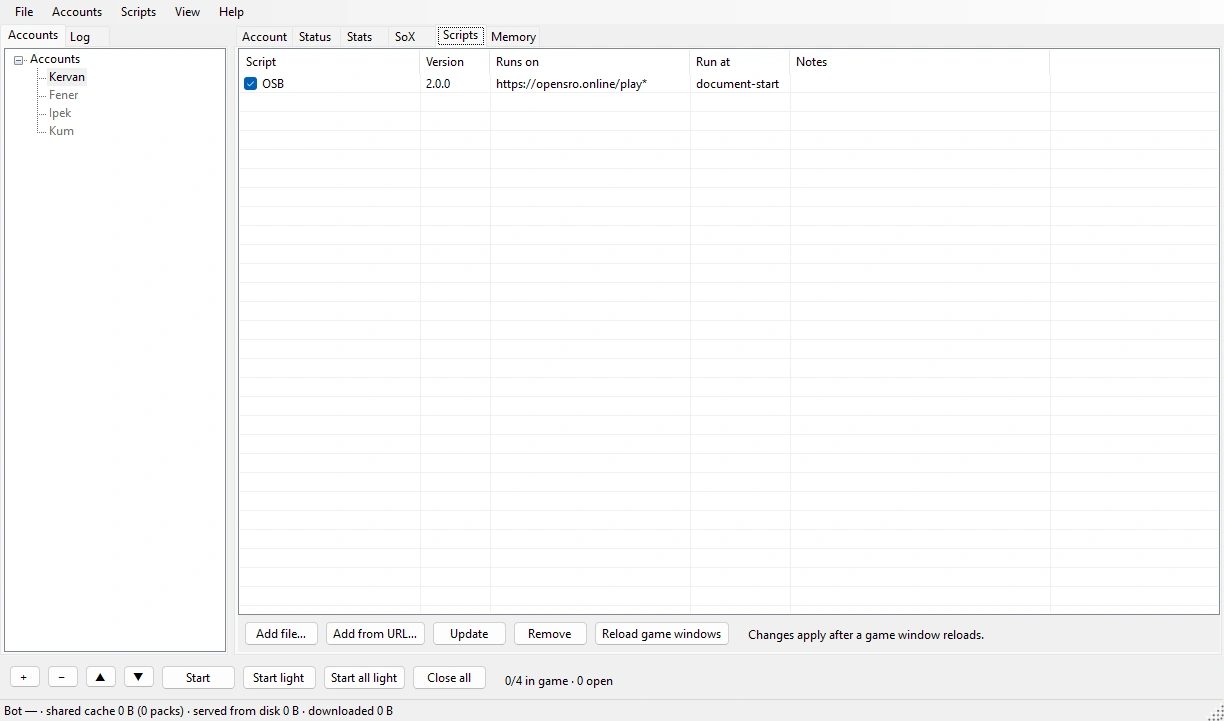
In the Scripts tab, press Add from URL… and paste the OSB install address:
https://raw.githubusercontent.com/corevider/osb/main/osb.user.js
It takes effect when the game window reloads. The dialog may be prefilled with a different address. Replace it with the one above.
Start, and what it costs
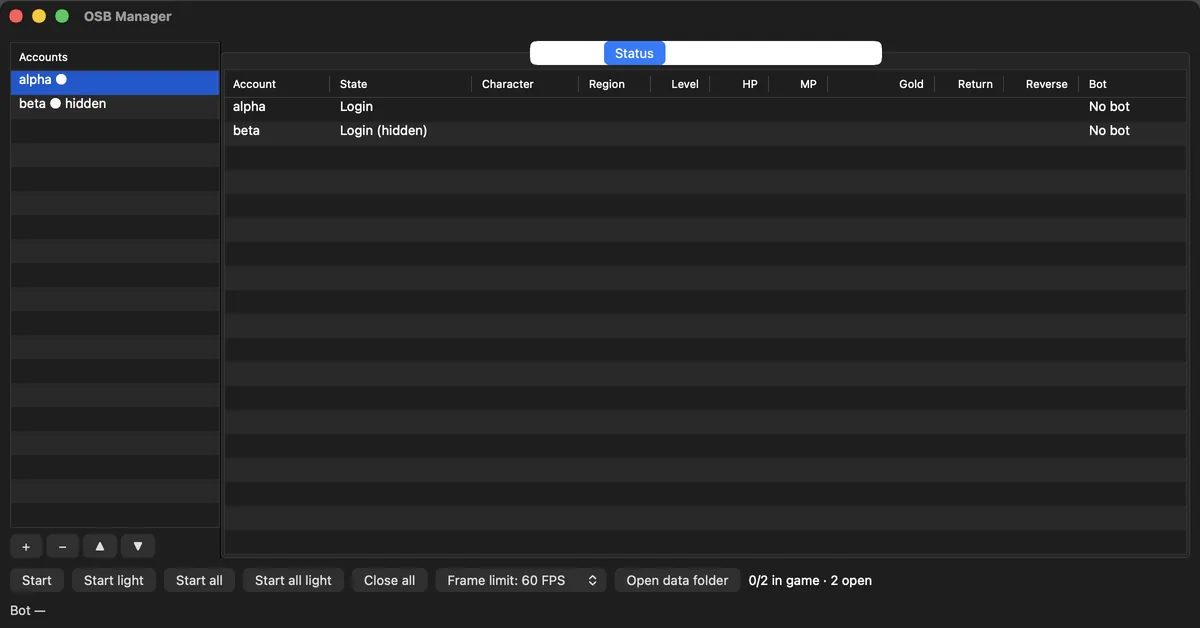
Each account has Start and Start light. Start all light opens all accounts one at a time, 15 seconds apart.
Light mode stops drawing and mutes the window. It kicks in once the world has loaded and the bot is hunting, or after 15 seconds. Hidden windows keep running.
The FPS limit can be 30, 60, 120 or none, and the default is 60. On Windows, on the title screen, with a 200 Hz display, one window used 134% of a core without the limit and 58% with 60 FPS. A minimised window on the title screen used 0% CPU on Windows. On macOS 1.0.0, in the world, a hidden window with light mode used 0.50 cores and a visible one with light mode used 0.59 cores.
The game’s pack files download once and the next account reads them from the cache. Measured on macOS on the title screen, a second account reached the login screen in 10.8 to 14.0 seconds instead of 18.8 to 24.1. On macOS this is View › Share game files between accounts, on by default.
Watch the accounts
- Status: state, region, level, HP, MP and the Return and Reverse scroll counts for each account.
- Stats: Account, Character, Hunting, Kills, Kills/h, XP, XP/h, Gold, Gold/h, Deaths and SoX, with an All characters row. Rates appear after 30 seconds. It reads what the bot reports, so OSB has to be running in that window.
- SoX: Star, Moon and Sun drops announced on the server. There is an Only my characters filter, and at most 1000 entries are kept.
Party options
The bot’s Party page has two options for your other accounts. With Join the party leader’s party on, you type the main character’s name in Party leader name, and the bot accepts a party invitation from that character or applies to their party-matching listing. Leave someone else’s party when the party leader is back makes an alt leave a party led by another character so it can join the main’s party again. On the main, tick Auto-recruit and Auto-accept party-matching joins, and leave Join the main account’s party off.
If it goes wrong
- “Auto login stopped”: two tries failed. Check the ID, password and server in the Account tab.
- Logged in but not hunting: check that Start the bot when this character enters the game is on.
- OSB does not show up: check the address on the Scripts tab and reload the game window.
- Stats is empty: make sure OSB is running in that window, and wait 30 seconds.
- For problems on the bot side, use Settings › Send bug report, then copy or save the report. Nothing is uploaded. See also first setup and the FAQ.